
Master Google Sheets Automation: Boost Efficiency in 2026
Your team is probably still using Google Sheets as an operational hub, even if the rest of your stack looks modern. Leads land in a form, someone cleans the rows, someone else copies data into a CRM, marketing exports performance numbers into a reporting tab, and finance asks why names don't match across sheets. None of this feels like a major problem on its own. Together, it becomes a drag on growth.
That's where Google Sheets automation stops being a convenience and starts becoming infrastructure.
For B2B and SaaS teams, value isn't a cute one-click trick. It's building a system that handles recurring lead flow, CRM sync, reporting updates, and data cleanup without breaking every time a column moves or a teammate edits the sheet. Good automation saves time. Better automation also prevents silent errors, protects sensitive data, and gives your team a process they can trust.
Foundations of Automation in Google Sheets
Many organizations think about Google Sheets automation in the wrong order. They jump straight to tools. The better starting point is the task itself.
If a process is repetitive, rule-based, and happens often enough to interrupt someone's day, it's a strong candidate for automation. In B2B operations, that usually means things like cleaning inbound lead data, standardizing campaign fields, pushing rows into downstream systems, refreshing reporting tabs, or routing records based on status changes.
A simple way to think about automation is like moving from a bicycle to a race car. Both get you somewhere. The right choice depends on distance, speed, and how much control you need.
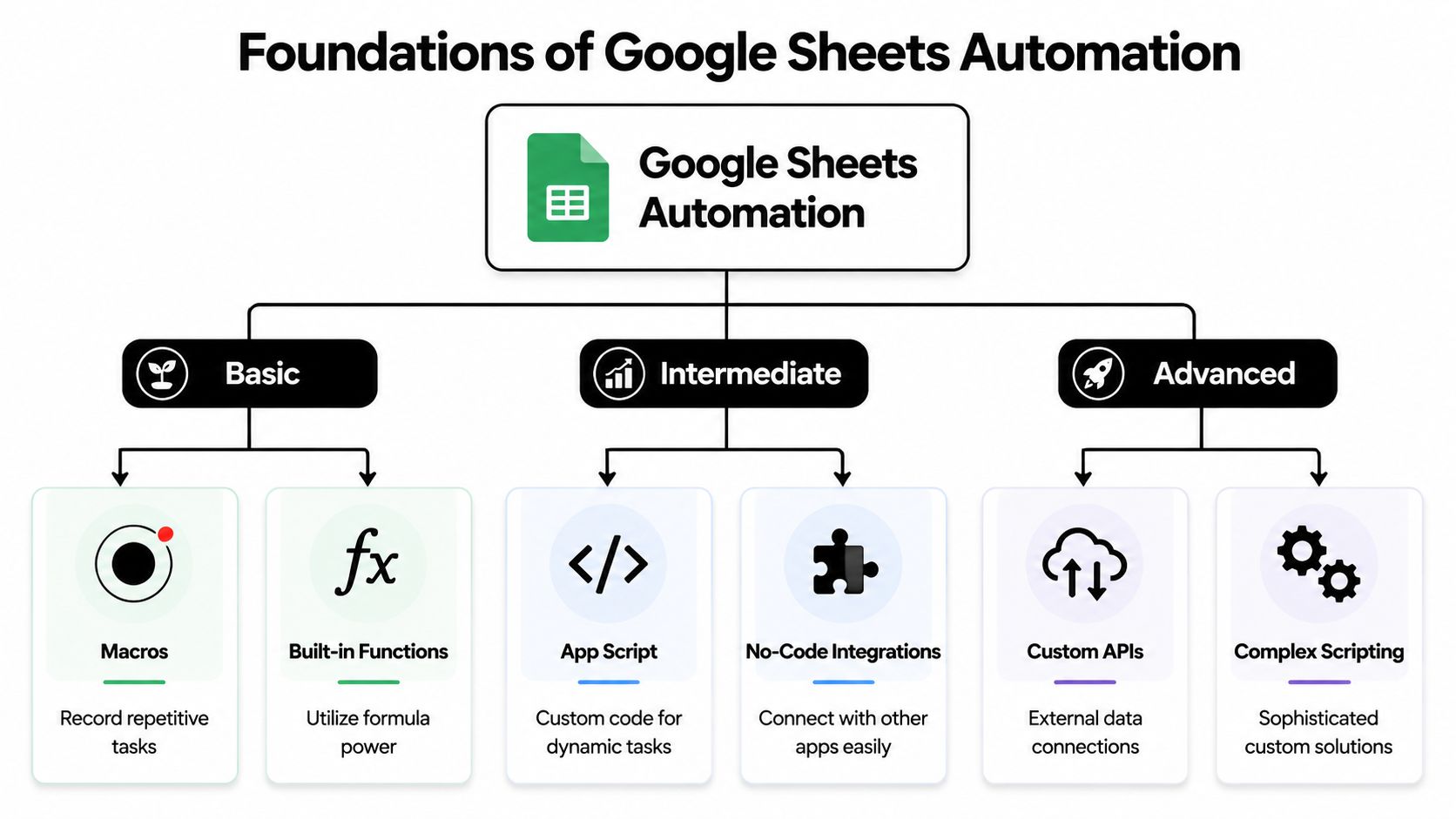
The three levels that matter
At the basic level, Google Sheets already gives you plenty. Built-in functions, filters, conditional formatting, and macros can remove a surprising amount of manual work. These are best when the job stays inside the sheet.
The intermediate level starts when Sheets needs to talk to another system. No-code tools and Apps Script then become useful. You can capture form submissions, update a CRM, notify sales, or move clean data into a reporting sheet.
The advanced level is where teams build maintainable systems instead of isolated tricks. That usually involves custom APIs, more complex Apps Script logic, validation rules, structured error handling, and workflow design that maps dependencies clearly. If you're trying to do that across sales, ops, and reporting, a visual process map helps before you automate anything. A good example is this guide to workflow visualization for automation planning.
What to automate first
Not all spreadsheet work deserves automation. The best targets usually share these traits:
- Frequent repetition. A task happens daily or weekly.
- Clear rules. You can explain the decision logic without saying “it depends” every other sentence.
- Downstream impact. Dirty data in the sheet causes bad CRM records, broken outreach, or unreliable reporting.
- Manual handoffs. One person finishes a step only for another person to re-enter the same information elsewhere.
Practical rule: Start with the process that wastes the most recurring human attention, not the one that looks most technical.
A lot of founders delay this because they assume automation means coding. That's one reason adoption lags. Over 70% of users report finding Google Sheets automation challenging, often because they associate it with coding they don't have, according to Numerous.ai's guide to automating Google Sheets.
That misconception matters. The biggest gains often come from low-code or no-code workflows with simple rules. For many B2B teams, the right first move isn't custom development. It's choosing the lightest automation layer that solves the problem without creating maintenance debt.
Quick Wins with Macros and Built-in Functions
The fastest win in Google Sheets automation usually comes from cleaning imported data.
A founder exports leads from LinkedIn, HubSpot, Stripe, or a form tool. The file lands in Sheets with inconsistent date formats, extra spaces, mixed capitalization, broken UTM tags, and columns nobody needs. Then someone spends part of the morning fixing it by hand. That's the kind of repetitive friction macros are built for.
A practical macro to build first
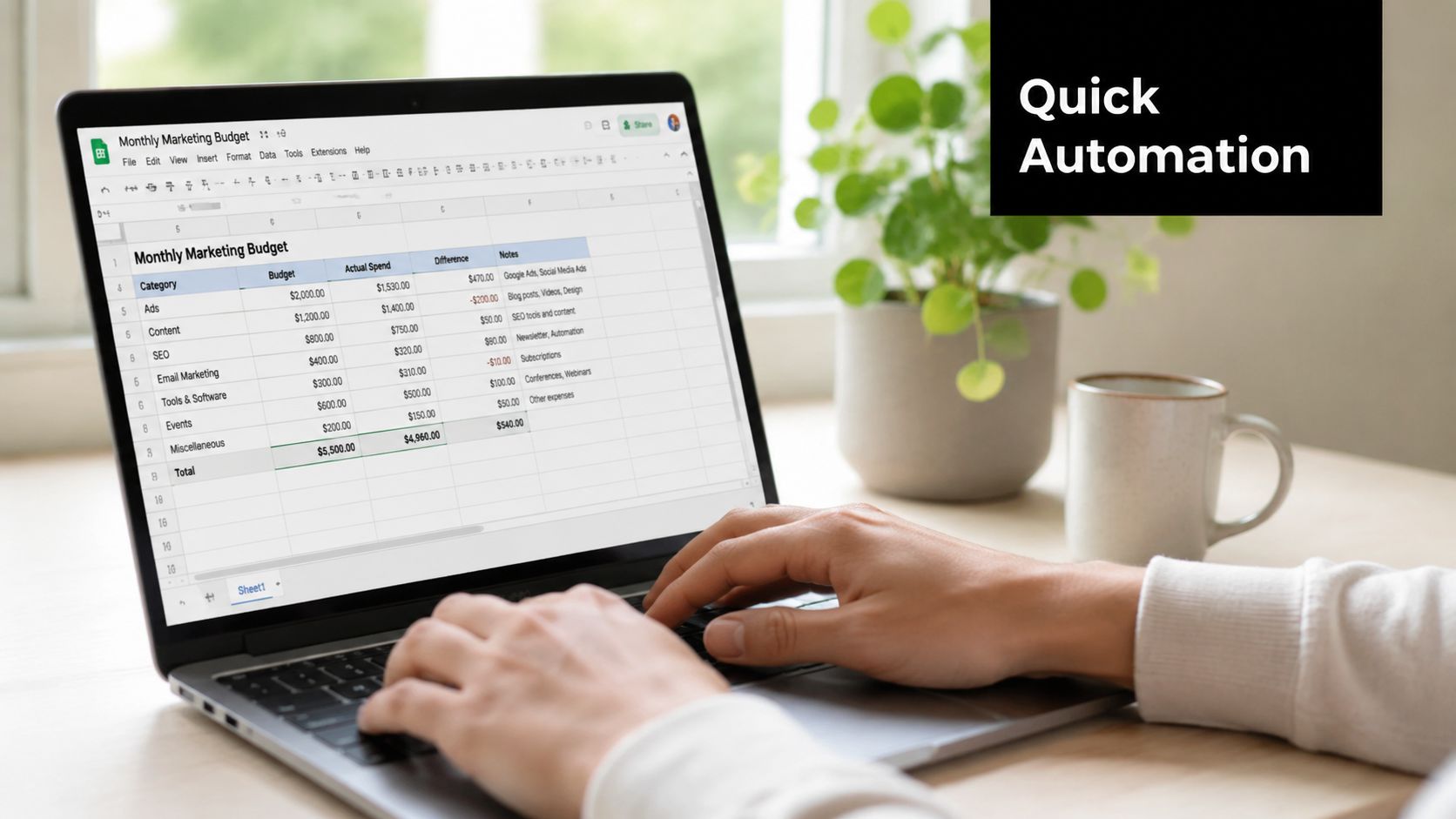
Use the Macro Recorder for a cleanup sequence you repeat often. For example:
- Import a CSV into a raw tab.
- Trim whitespace in name, email, and company columns.
- Standardize date formatting.
- Freeze the header row.
- Apply consistent font and header styling.
- Resize columns.
- Sort rows by submission date.
In Google Sheets, open Extensions > Macros > Record macro and perform those actions once. Save the macro with a clear name like “Clean Imported Leads.”
This won't solve every data issue, but it gives your team a repeatable baseline. That matters more than cleverness.
Where formulas beat macros
Macros are useful when the same sequence of clicks happens every time. Built-in functions are better when the sheet needs to keep working as new rows arrive.
For B2B workflows, common examples include:
- Text cleanup with functions that trim spaces or normalize case
- Status logic that flags incomplete rows
- Lookup logic that maps campaign names, owners, or product categories
- Validation columns that show whether a row is ready for CRM sync
A good pattern is to split the sheet into layers. Keep one tab for raw input, one tab for cleaned data, and one tab for reporting or export. That structure prevents your formulas and macros from fighting each other.
If the sheet is both your intake form, your processing engine, and your dashboard, it will become fragile fast.
Absolute versus relative references
Consequently, many recorded macros become unreliable.
If you record a macro with absolute references, it repeats the exact same cell actions every time. That works for formatting a fixed range, but it breaks when the data size changes.
If you use relative references, the macro works in relation to the selected cell or range. That makes it more reusable for operational sheets where row counts change constantly.
A simple rule helps:
| Use case | Better choice |
|---|---|
| Formatting a fixed header section | Absolute references |
| Cleaning newly imported rows | Relative references |
| Repeating the same action on selected records | Relative references |
| Updating a fixed report layout | Absolute references |
What works and what doesn't
Macros work well for repeatable cleanup, formatting, and prep tasks. They don't work well for workflows that depend on external systems, variable conditions, or branching logic.
Good first use cases:
- Imported lead cleanup
- Weekly reporting prep
- Campaign export formatting
- Sales pipeline tab housekeeping
Poor use cases:
- CRM sync
- Conditional notifications
- Cross-app workflows
- Anything requiring auditability
The point of starting here isn't to stay here. It's to create one reliable win. Once your team sees that repetitive spreadsheet work can disappear, it becomes much easier to justify stronger automation layers.
No-Code Automation for B2B Workflows
Most B2B teams don't need custom code for their first serious automation. They need a dependable flow between the tools they already use.
A common example looks like this. A prospect fills out a website form. The submission lands in Google Sheets. Sales wants a clean lead record in a follow-up sheet. Marketing wants campaign fields normalized before the row gets used in segmentation. Ops wants a backup log. No one wants to babysit the process.
That's a strong fit for no-code automation.
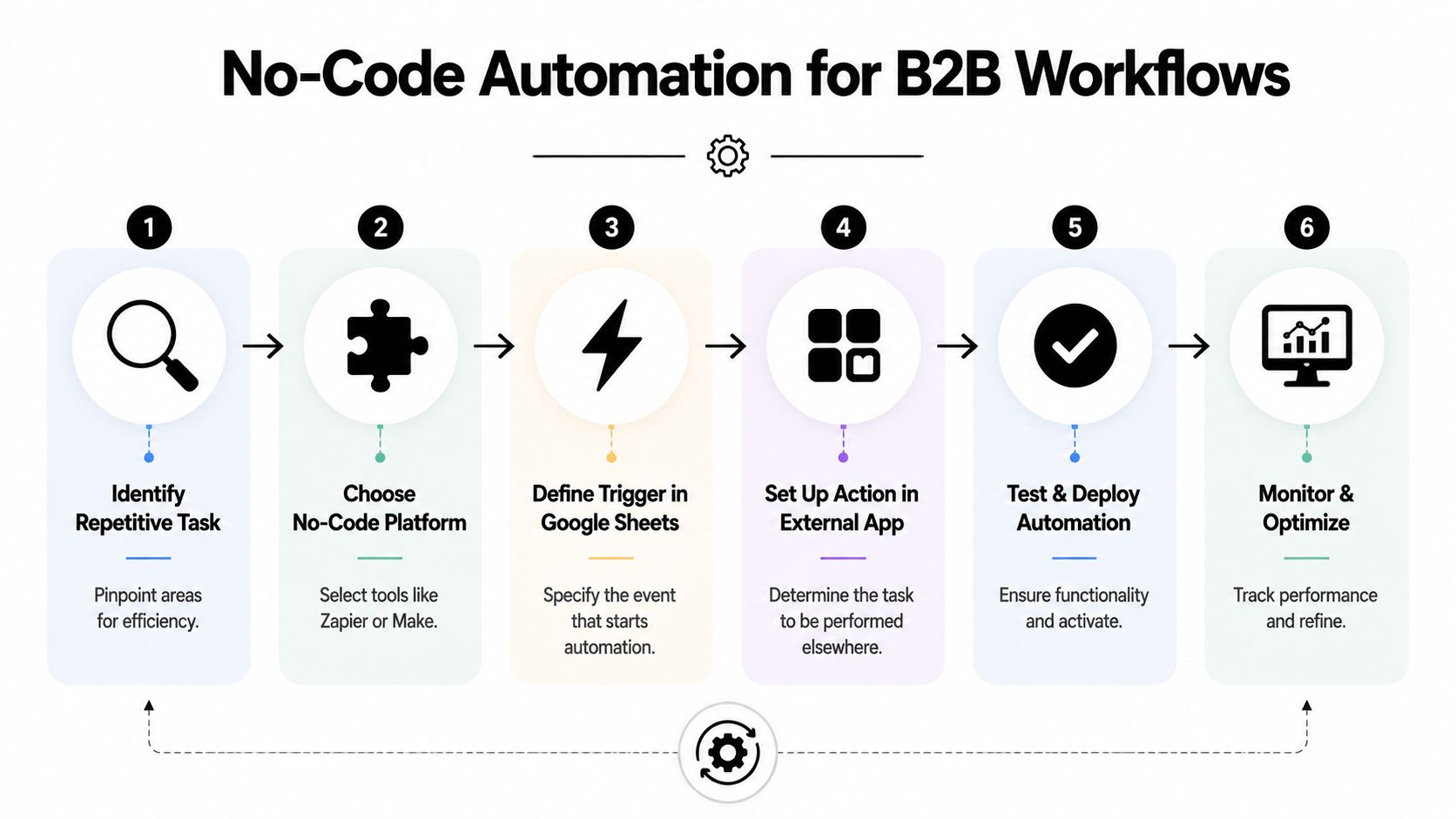
A lead capture workflow that teams actually use
Let's say your stack includes a website form, Google Sheets, and a lightweight CRM sheet or follow-up tracker. In Make.com or Zapier, the workflow can be structured like this:
- Trigger. New form submission arrives.
- Action one. Add a new row to a raw leads sheet.
- Action two. Clean fields such as source, company name, owner, or country format.
- Action three. Route the cleaned row into a qualified leads sheet if it matches your conditions.
- Action four. Notify the right person or queue the record for outreach.
That structure is simple, but it's already better than a one-sheet mess where every function and handoff lives in the same place.
For teams still doing manual copy-paste, this is often the point where spreadsheet operations start feeling like a real system. If you want a practical walkthrough for reducing repetitive entry, this guide on how to automate data entry is useful because it focuses on operational setup rather than theory.
Where no-code platforms help most
No-code tools are strongest when the logic is clear and the workflow crosses app boundaries.
They're especially useful for:
- Lead intake workflows tied to forms or landing pages
- CRM support processes where Sheets acts as a staging area
- Marketing ops for campaign tagging, list prep, and export cleanup
- Internal reporting that pulls structured records into one place
They also let non-technical teams own the process. That matters because a lot of spreadsheet automation dies when only one technical person understands it.
Below is a visual reference for the implementation flow.
The trade-off most tutorials skip
No-code isn't magic. Timing and reliability matter.
Make.com's “watch new rows” trigger checks for changes every 15 minutes on free accounts, which creates a real gap for teams that need immediate data integrity for segmentation or AI-driven campaigns, as noted in this YouTube breakdown of delayed row triggers. If your workflow depends on sub-minute cleanup before data reaches a CRM or enrichment step, delayed polling can become the weak point.
That's why I usually separate no-code use cases into two groups:
| Workflow type | No-code fit |
|---|---|
| Scheduled reporting and periodic syncs | Strong |
| Lead routing where a short delay is acceptable | Strong |
| Real-time row-level cleaning before downstream actions | Limited |
| Critical workflows needing immediate validation | Often needs script or app-layer control |
Fast setup is useful. Delayed bad data is still bad data.
A better operating model
For many SaaS teams, the best design is hybrid. Use no-code for orchestration between systems, but keep a dedicated validation layer before the record becomes “live.” That can be a cleaned tab, an approval step, or a script-backed normalization process for sensitive fields.
This matters even more in finance and executive reporting. Spreadsheet automation doesn't fail only when a workflow stops. It also fails when a workflow keeps running with wrong assumptions. If reporting is part of your operation, Cyndra's financial reporting guide is a useful companion read because it frames automation around data consistency and reporting trust, not just speed.
No-code platforms are excellent when you respect their boundaries. They save time, reduce manual handoffs, and connect your stack quickly. But they need structure, naming conventions, validation rules, and ownership. Without those, you haven't built automation. You've built a fragile shortcut.
Building Custom Logic with Google Apps Script
No-code tools get you far. Then you hit a wall.
Maybe you need row-level conditions that are too specific for a visual builder. Maybe you need alerts only when a lead matches a certain source and status combination. Maybe you need to batch updates, write logs, or prevent duplicate actions. That's where Google Apps Script becomes worth the effort.
For B2B workflows, Apps Script shines when your sheet is acting like an operational control center rather than a passive spreadsheet.
A useful starter script
Here's a simple pattern that sends an email when a new row is added and the lead source is marked as Partner. It assumes:
- Column A is timestamp
- Column B is lead name
- Column C is email
- Column D is company
- Column E is source
function notifyOnPartnerLead(e) {
  var sheet = e.source.getActiveSheet();
  var row = e.range.getRow();

  if (row === 1) return; // Skip header row

  var values = sheet.getRange(row, 1, 1, 5).getValues()[0];
  var timestamp = values[0];
  var leadName = values[1];
  var email = values[2];
  var company = values[3];
  var source = values[4];

  if (source !== "Partner") return;

  var recipient = "sales@example.com";
  var subject = "New Partner Lead: " + leadName;
  var body =
    "A new partner lead was added.\n\n" +
    "Timestamp: " + timestamp + "\n" +
    "Name: " + leadName + "\n" +
    "Email: " + email + "\n" +
    "Company: " + company + "\n" +
    "Source: " + source;

  MailApp.sendEmail(recipient, subject, body);
}
How to make it run
Open Extensions > Apps Script, paste the function, and save the project. Then create an installable trigger:
- In Apps Script, click Triggers
- Add a new trigger for
notifyOnPartnerLead - Choose the event source tied to the spreadsheet
- Select the event type that matches your workflow
- Authorize the script
For a live intake sheet, you'll usually choose an event that runs when the sheet is edited or when form responses land.
Why this works better than patching no-code
This script gives you precise control over logic, access, and actions. You can add validation before the email sends. You can write to a log sheet. You can stop duplicate alerts. You can extend the condition to include territory, owner, or product line.
That's a major shift. Instead of asking whether a tool supports your workflow, you define the workflow yourself.
Here's the part most beginner tutorials don't stress enough: performance matters as soon as your sheet gets busy.
Apps Script batch operations can process 99 rows in one API call, reducing execution time by 85–90% compared to cell-by-cell iteration, with a 94% success rate in production environments when paired with proper error handling and validation, according to MindStudio's analysis of Google Sheets AI-powered workflows.
Build script logic like an operator, not a hobbyist
When you write Apps Script for a business workflow, treat it like production logic.
Use this checklist:
- Read ranges in batches instead of pulling one cell at a time
- Check the header row explicitly so the script ignores structural rows
- Guard against blanks before sending messages or writing records
- Separate config values such as recipients or sheet names into variables
- Log failures somewhere visible instead of letting them disappear unnoticed
The script that “works on my sheet” is not the same thing as a workflow your sales team can rely on.
What Apps Script still won't solve cleanly
Apps Script is powerful, but it has limits. It can become hard to maintain if one file turns into a dumping ground for every request from sales, marketing, and ops. It also becomes risky when permissions are broad and nobody documents what each trigger does.
Use Apps Script when the logic needs to live close to the sheet and when reliability matters more than visual simplicity. Don't use it as an excuse to build an undocumented mini-app inside a spreadsheet.
Best Practices for Scalable and Secure Automations
Most spreadsheet automations don't fail because the original idea was bad. They fail because nobody planned for normal business changes.
A sheet tab gets renamed. A required field becomes optional. Someone inserts a column in the middle of a workflow. An integration token expires. A script keeps running, but the output is wrong. That's why “set it and forget it” isn't an operating model. It's how teams end up trusting broken data.
There's a strong ROI case for doing this properly. Automating routine data entry tasks in Google Sheets can save teams between 15 to 20 hours per week, manual data entry carries an average error rate of 1% to 3%, and automation tools typically pay for themselves within 2 to 4 weeks, according to NoCodeAPI's analysis of Google Sheets automation versus manual data entry. But those gains only hold if the automation is dependable.
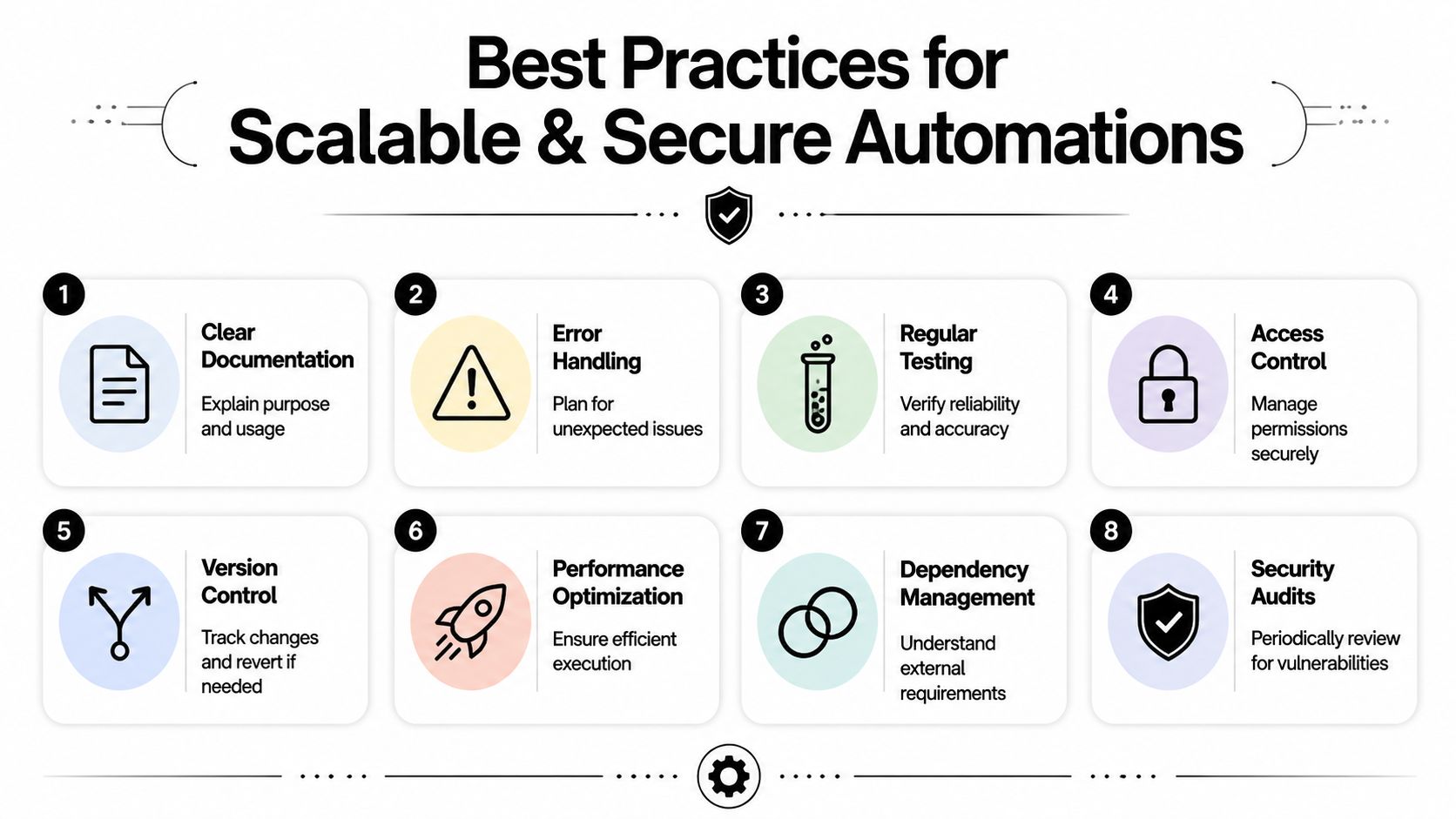
The checklist that prevents silent failure
Document the workflow. Write down the trigger, the actions, the owner, the destination sheet, and what “success” looks like. If a teammate can't understand the automation without calling the builder, it's not ready.
Add visible error handling. A failed step should create a log, send an alert, or write to an exceptions tab. Silent failure is worse than obvious failure.
Protect sensitive sheets and ranges. Revenue data, customer details, hiring pipelines, and finance records shouldn't be editable by everyone who can open the file.
Limit permissions by role. The person reviewing reports doesn't need the same access as the person maintaining scripts and triggers.
Test after every structural change. A new column, a renamed tab, or a changed dropdown value can break logic that looked stable last week.
Use a staging tab for dirty input. Don't let raw records flow directly into live dashboards, CRM exports, or executive reporting.
Track dependencies. If the workflow relies on a form tool, add-on, trigger, or webhook, list that dependency where the team can see it.
Review automations on a schedule. Teams change. Processes evolve. The automation should be audited before it becomes outdated infrastructure.
Security is part of ROI
Founders often think about automation only in terms of time savings. That's incomplete.
If an automation copies lead data into the wrong place, exposes client information to the wrong team, or emails sensitive records without review, the operational cost can be bigger than the time saved. Security in Google Sheets automation is mostly about disciplined access, clear ownership, and minimizing how many people and tools can touch sensitive workflows.
Reliable automation is controlled automation. If everyone can change it, no one owns it.
Design for scale, even if the team is still small
A good test is this: could your team add another salesperson, another marketer, and another reporting need without rebuilding the sheet from scratch?
If the answer is no, the workflow probably relies too much on tribal knowledge. Build with named tabs, stable schemas, clear validation fields, and separate raw, processed, and output layers. That structure doesn't make the automation fancy. It makes it survivable.
Deploying Automation SOPs and Reusable Templates
The final step is operational discipline. If the workflow only lives inside one person's head, it isn't part of the business yet.
That's why every serious Google Sheets automation needs an SOP around it. Not a bloated document. A short, practical operating guide that tells the team what the sheet does, where data comes from, what to do when something fails, and who owns maintenance.
What an SOP should include
A usable SOP for a Sheets-based workflow should answer five questions:
- What triggers the automation
- Which tabs are raw, cleaned, and output tabs
- Which fields are required
- What common errors look like
- Who fixes the issue
For reusable templates, keep the layout boring on purpose. A lead tracking template, a project tracker, or a content calendar should have predictable tabs, protected headers, and a visible validation area. Fancy templates break more easily than plain ones.
The row-moving problem teams keep hitting
One recurring pain point in Google Sheets automation is moving rows between tabs based on status.
There's no native “move row” function that behaves cleanly in every workflow. In practice, users often copy a row to a target sheet like “Won” or “Lost,” then delete it from the source. That pattern breaks when formulas, validations, or row references get involved. It's also one reason many non-technical teams stall here. Tutorials often rely on script for this workaround, while 90% of non-technical users prefer avoiding code, as discussed in this video on automating row movement without Apps Script.
The safer answer is process design. Instead of physically moving rows right away, many teams should first use a status-driven architecture:
- Raw leads tab for intake
- Qualified view filtered by status
- Won and lost tabs generated from rules or downstream automation
- Archive tab for finalized records if physical separation is required
That approach reduces breakage and makes audit trails easier to preserve.
Standardize before you automate more
If multiple people touch the same workflow, standard naming and responsibility matter as much as the automation itself. A process framework aids in these situations. A practical guide to process standardization for growing teams is useful because it forces you to define ownership, inputs, outputs, and exception handling before another automation gets layered on top.
A good template plus a simple SOP provides significant advantages. New hires ramp faster. Handovers get easier. Problems become diagnosable. And your spreadsheet stops acting like a personal workaround and starts acting like an operating system for the team.
If your team is stuck between manual spreadsheet work and brittle automations, MakeAutomation can help you turn Google Sheets into a reliable part of your B2B or SaaS operations. That includes lead gen workflows, CRM automation, reporting systems, AI-enhanced processes, reusable SOPs, and hands-on implementation that scales without adding more spreadsheet chaos.