

Deploy React App to GitHub Pages: The Ultimate 2026 Guide
You've finished the React app. It looks right on localhost, the routes work, and the last thing you want is to lose half a day to a blank page after deployment.
GitHub Pages is still one of the simplest ways to publish a static React project. It's free, sits neatly beside your repository, and works well for portfolios, demos, internal tools, docs, and lightweight frontends. Where most guides fall short is that they assume you're using Create React App. A lot of teams aren't. They're using Vite, and the old instructions break in small but painful ways.
That's where most first deployments go sideways. The app builds fine, GitHub Pages serves something, but assets load from the wrong path, the wrong folder gets pushed, or routing fails after refresh. The fix usually isn't complicated. You just need the right setup for the toolchain you're using.
From Localhost to Live URL
When developers search for how to deploy React app to GitHub Pages, they usually need one thing: a public URL today, not a tour of hosting theory.
GitHub Pages is a good fit when your React app is a static frontend. That means your production output is just HTML, CSS, JavaScript, and assets. GitHub Pages serves those files directly from your repository. It doesn't run Node, Express, or any backend process.
That distinction matters early. If your app is a marketing site, dashboard demo, design system preview, documentation site, or frontend that calls an external API, GitHub Pages is often enough. If your app depends on server-side code living in the same project, GitHub Pages won't handle that part.
Why GitHub Pages works well for React
React apps built with Create React App or Vite produce static output for deployment. Once bundled, your app doesn't need a running application server just to render the client-side interface.
That makes GitHub Pages appealing for a first deployment because it gives you:
- A predictable hosting model. Your repository holds the code, and a published branch holds the compiled site.
- A clean public URL. You can share it with a client, hiring manager, teammate, or stakeholder without spinning up infrastructure.
- A low-friction workflow. You can deploy manually first, then automate once the basics work.
Practical rule: Get one manual deployment working before you automate anything. If the manual path is broken, CI will only fail faster.
The real difference between CRA and Vite
Most older tutorials assume Create React App, where the production output lands in a build folder. Modern React projects often use Vite, which outputs to dist by default and needs clearer base-path handling.
That's the gap that causes a lot of frustration. A CRA tutorial copied into a Vite repo can produce a successful-looking deploy that serves an empty or broken app. The branch exists. GitHub Pages is enabled. The page loads. Then nothing renders correctly.
The rest of the process is straightforward once you line up three things:
- Your app builds to the correct output folder.
- Asset paths point to the GitHub Pages URL correctly.
- GitHub Pages is told which branch to publish.
Preparing Your React App for Deployment
The setup is small, but every line matters. GitHub Pages deployment for React typically relies on the gh-pages package, which had over 12 million total downloads as of 2024 according to LogRocket's guide to deploying React apps with gh-pages.
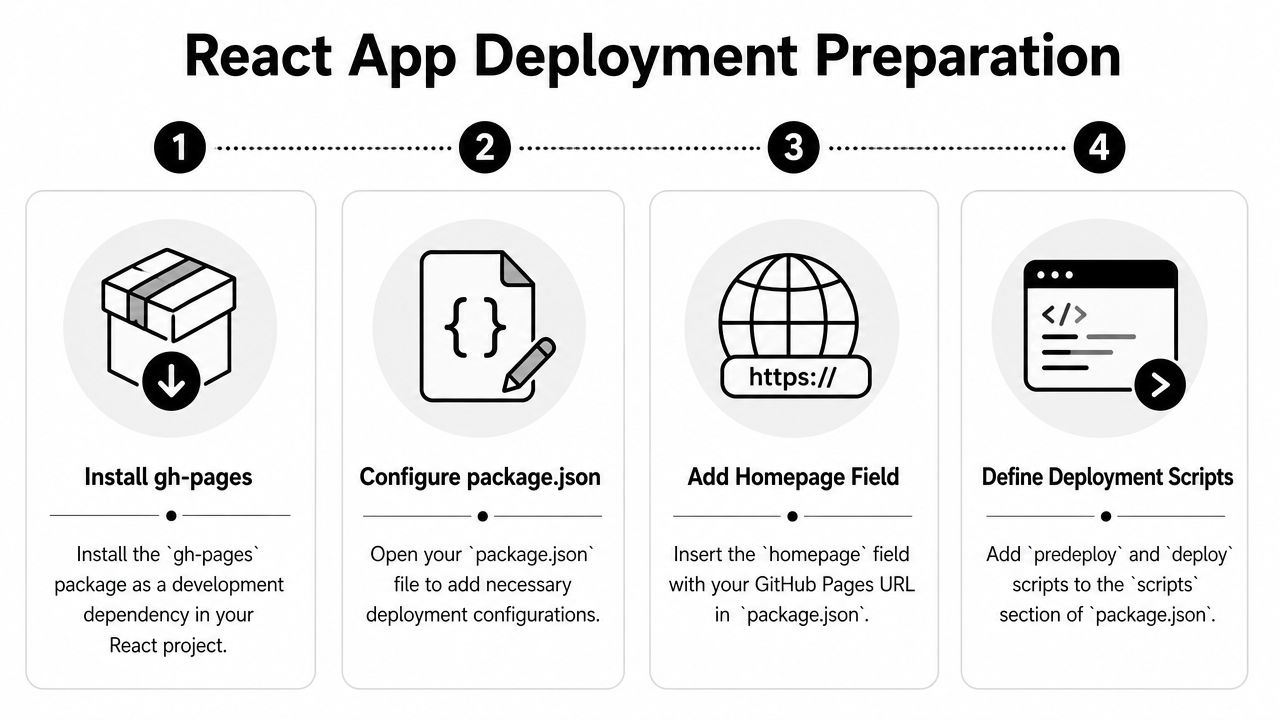
Install the deployment package
Start in your project root:
- For npm users, install
gh-pagesas a development dependency. - For existing repos, make sure the project already has a valid remote pointing to GitHub.
- For first-time setups, verify the repository name before writing the homepage URL. A typo there can break asset loading later.
Run:
npm install --save-dev gh-pages
Update package.json for Create React App
If you're using CRA, your production assets are generated into build.
Add a homepage field and the deployment scripts:
{
  "name": "my-app",
  "version": "0.1.0",
  "private": true,
  "homepage": "https://yourusername.github.io/your-repo-name",
  "scripts": {
    "start": "react-scripts start",
    "build": "react-scripts build",
    "predeploy": "npm run build",
    "deploy": "gh-pages -d build"
  }
}
The homepage value tells React where the app will live after deployment. Without it, the app may try to load assets from the wrong root path.
Update package.json for Vite
If you're using Vite, the default output directory is dist, not build. That single difference is why so many CRA-based tutorials mislead Vite users.
Your package.json should look more like this:
{
  "name": "my-vite-app",
  "private": true,
  "version": "0.0.0",
  "homepage": "https://yourusername.github.io/your-repo-name",
  "scripts": {
    "dev": "vite",
    "build": "vite build",
    "predeploy": "npm run build",
    "deploy": "gh-pages -d dist"
  }
}
A YouTube deployment walkthrough notes that an omitted or incorrect homepage property causes path issues in 90% of failed deployments, and Vite projects need gh-pages -d dist rather than build in the deploy script, as explained in this React to GitHub Pages deployment tutorial.
If your Vite deployment succeeds but the site shows a blank page, assume the asset base path is wrong until proven otherwise.
Add base configuration for Vite
Vite often needs one more explicit setting in vite.config.js, especially when the app is served from a repository subpath instead of the domain root.
For a repository deployment, configure base to match the subpath:
import { defineConfig } from 'vite'
import react from '@vitejs/plugin-react'

export default defineConfig({
  plugins: [react()],
  base: '/your-repo-name/',
})
Some teams prefer a relative base for simpler static hosting scenarios. The important part is consistency between your Vite config and your deployed URL structure.
What these settings actually do
These aren't random deployment rituals.
predeploymakes sure you publish a fresh production build.deploypushes only the compiled output, not your whole source tree, to the publishing branch.homepagefixes how the app resolves script, style, and image paths once it's no longer served from localhost.- Vite
basemakes asset URLs line up with the subdirectory where GitHub Pages hosts your repository site.
Get these right and deployment becomes routine. Get one wrong and you'll usually end up debugging a blank screen, missing CSS, or broken JavaScript bundles.
Executing Your First Manual Deployment
The first deployment should be manual. It gives you a clean way to confirm that the app can build, publish, and load before you introduce automation.

Run this from the project root:
npm run deploy
If your scripts are configured correctly, two things happen in sequence. First, the app is compiled into a production bundle. Then gh-pages publishes the output directory to a branch named gh-pages.
What happens under the hood
The branch creation part surprises people the first time.
You don't have to create the gh-pages branch manually in the usual workflow. The package handles that on first publish, then updates it on later deployments. That's one reason this approach remains popular for static React projects.
Your source code stays on main or master. Your built site lives on gh-pages.
What to check in the terminal
A healthy deployment run usually follows this pattern:
- Build step runs first. CRA writes to
build. Vite writes todist. - Publish step runs second.
gh-pagespushes the contents of that folder. - The terminal reports a successful publish. At that point, the branch exists remotely even if the site isn't visible yet.
If the command fails, check the obvious things first:
- Wrong output directory. Vite users often still point to
build. - No
homepagevalue. Assets may publish but load from the wrong path. - Build errors masked as deploy issues. If the app doesn't build cleanly, deployment won't rescue it.
Point GitHub Pages at the right branch
Pushing to gh-pages is only part of the job. GitHub also needs to know that this is the branch it should serve.
Go to your repository settings and open the Pages section. Set the publishing source to the gh-pages branch. Save the change.
This is a one-time repository setting, but it's also a common place to get stuck. Developers often run npm run deploy, see the branch appear, and assume the site should already be live. It won't be until GitHub Pages is pointed at that branch.
A quick visual walkthrough can help if you want to see the flow before clicking through your own repo:
Verify the live site properly
Don't stop at the homepage load.
Check these before calling the deployment done:
- Open the public URL directly. Make sure it's the GitHub Pages URL for your repository.
- Refresh the page hard. Cached assets can hide path problems.
- Inspect the network tab. Missing CSS or JS files usually point to a path mismatch.
- Click through the app. Navigation issues often show up after the initial load.
A deployment isn't successful because the branch exists. It's successful when the public URL loads the correct assets and the app behaves the way it did locally.
If the page is blank, go straight back to the path configuration. In practice, that's where most manual deployment problems live.
Solving Single-Page App Routing on GitHub Pages
The homepage works. Then you refresh /about and GitHub Pages gives you a 404.
That's the classic single-page app problem on static hosting. GitHub Pages serves files. It doesn't understand your client-side route definitions. When a visitor lands directly on a nested URL, GitHub Pages looks for a real file at that path. If it doesn't exist, it returns a 404 before React gets a chance to boot.
Why routing breaks after deployment
On localhost, your dev server handles route fallback for you. In production on GitHub Pages, you don't get that convenience by default.
That leaves you with two practical router choices in many React apps:
| Aspect | HashRouter | BrowserRouter |
|---|---|---|
| URL format | site/#/about |
site/about or site/repo/about |
| Setup difficulty | Lower | Higher |
| GitHub Pages compatibility | Works reliably for static hosting | Needs more care |
| Visual cleanliness | Less clean | Cleaner |
| Deep linking behavior | Handled on the client via hash | Can fail on refresh if static host can't resolve route |
| Best fit | Portfolio, demos, simple tools | Apps where cleaner URLs matter |
When HashRouter is the better choice
HashRouter is the pragmatic option. The route stays after #, so the browser requests the static page first and React handles everything after that fragment on the client side.
Use it if:
- you need a working deployment quickly
- you don't care about
#in the URL - the app is a demo, portfolio, admin tool, or internal interface
Example:
import { HashRouter, Routes, Route } from 'react-router-dom'

function App() {
  return (
    <HashRouter>
      <Routes>
        <Route path="/" element={<Home />} />
        <Route path="/about" element={<About />} />
      </Routes>
    </HashRouter>
  )
}
When BrowserRouter is worth the extra effort
BrowserRouter produces cleaner URLs, but GitHub Pages requires more care because your app usually lives under a repository subpath, not the domain root.
To handle sub-routes correctly, the router basename needs to match the repository name. A deployment guide notes that neglecting basename causes navigation failures in roughly 75% of deployments where deep-linking or nested routes are used, as shown in this React Router and GitHub Pages walkthrough.
Example:
import { BrowserRouter, Routes, Route } from 'react-router-dom'

function App() {
  return (
    <BrowserRouter basename="/your-repo-name">
      <Routes>
        <Route path="/" element={<Home />} />
        <Route path="/about" element={<About />} />
      </Routes>
    </BrowserRouter>
  )
}
If your app has more complex route structures, this guide on React Router nested routes is a useful companion when you're checking how nested paths behave after deployment.
Cleaner URLs don't help if refreshes break the app. Pick the router strategy that matches the host you actually have.
A practical decision rule
Use HashRouter when deployment reliability matters more than URL aesthetics.
Use BrowserRouter when you need cleaner URLs and you're prepared to configure basename carefully, test deep links, and handle GitHub Pages limitations with more attention.
For a first deployment, there's no shame in choosing the option that breaks less.
Automating Deployments with GitHub Actions
Once manual deployment works, repeating npm run deploy by hand gets old fast. Automation fixes that. Push to main, let GitHub build the app, and publish the site without touching your terminal.
That's the point where deployment starts feeling like part of development instead of a separate chore. Teams that want to ship code faster with continuous deployment usually start with small, dependable workflows like this one.

A working GitHub Actions workflow
Create .github/workflows/deploy.yml:
name: Deploy React App to GitHub Pages

on:
  push:
    branches:
      - main

permissions:
  contents: write

jobs:
  deploy:
    runs-on: ubuntu-latest

    steps:
      - name: Check out repository
        uses: actions/checkout@v4

      - name: Set up Node.js
        uses: actions/setup-node@v4
        with:
          node-version: 20
          cache: npm

      - name: Install dependencies
        run: npm ci

      - name: Build project
        run: npm run build

      - name: Deploy to GitHub Pages
        uses: peaceiris/actions-gh-pages@v3
        with:
          github_token: ${{ secrets.GITHUB_TOKEN }}
          publish_dir: ./build
For Vite, change only the last line:
publish_dir: ./dist
Why each step matters
This file is short, but each step has a clear job.
actions/checkoutpulls your repository into the runner.actions/setup-nodeinstalls the Node environment your build needs.npm ciinstalls dependencies from the lockfile in a reproducible way.npm run buildcreates the production output.peaceiris/actions-gh-pagespublishes that output to thegh-pagesbranch.
If you already use broader CI patterns, this overview of an auto DevOps pipeline is useful context for where deployment fits after testing and validation.
The settings that usually break CI
Repository settings matter as much as the workflow file.
A GitHub Actions deployment guide notes that GitHub Actions permissions should be set to Read and write and Allow all actions and reusable workflows to avoid common CI/CD failures, with that configuration resolving 80% of "Permission denied" errors in automated deployment workflows, according to this GitHub Pages deployment walkthrough for React.
Check these in your repository settings before debugging the YAML for an hour:
- Workflow permissions should allow write access.
- Actions policy should allow the workflow you're trying to run.
- Branch targeting should match your real default branch.
- Publish directory should match your toolchain.
buildfor CRA,distfor Vite.
A Vite-specific note
Vite deployments often fail in CI for the same reason they fail manually. The app builds, but asset paths don't line up with the GitHub Pages subpath.
If your Vite app works locally and publishes from Actions but shows a blank page in production, re-check vite.config.js, your homepage setting, and whether your app expects to live at / instead of /<repo-name>/.
Build green isn't the same as site working. CI only proves the workflow ran. The browser still decides whether your paths are correct.
Once this workflow is in place, your GitHub Pages site updates every time you push to main. That's a much better default than relying on memory.
Final Touches for a Production-Ready Site
A live site is the baseline. A production-ready site is the version you can hand to real users without surprises.
Custom domains and public polish
GitHub Pages supports custom domains, which is worth doing if the app is customer-facing, part of a product ecosystem, or tied to your brand. A custom domain makes the project feel intentional instead of temporary.
The main thing to watch is consistency. If you change the public URL, make sure any path-sensitive configuration in the app still matches the final domain and subpath behavior.
Environment variables and public repos
GitHub Pages is static hosting. That means anything bundled into the frontend is visible to the browser. Don't treat frontend environment variables like backend secrets.
Keep this distinction clear:
- Public config values can live in frontend environment files.
- Private API keys should never be exposed in a public React build.
- Secrets for CI belong in repository secrets, not committed files.
If your team needs a stronger process around handling credentials across build pipelines, this guide to DevOps secrets management is a practical next read. For broader engineering hygiene, this practical guide to secure development is worth reviewing before you standardize your deployment workflow.
The limitation that trips people up most
GitHub Pages only serves static files. It cannot run your backend.
That sounds obvious until someone tries to deploy a React frontend and Express backend from the same repository and expects /api/* routes to work on GitHub Pages. They won't. Stack Overflow discussions around this problem show that 73% of questions about deploying a React app with a backend in the same repo go unanswered or receive outdated workarounds, because GitHub Pages cannot execute server-side code, as discussed in this Stack Overflow thread on React frontend and backend deployment in one repo.
That means you need a split deployment model:
- Frontend on GitHub Pages
- Backend on a platform that runs server-side code
- API base URLs configured explicitly for production
If the app depends on server execution, GitHub Pages can host the interface, not the application stack.
A short production checklist
Before you call the deployment finished, confirm these:
- The correct public URL loads and the main assets resolve.
- Routes behave as expected for the router strategy you chose.
- No secrets are exposed in the built frontend.
- Backend calls target a real deployed API, not localhost.
- Your repo settings and workflow permissions are documented so the next developer doesn't have to rediscover them.
A good GitHub Pages deployment is simple, but it's only simple after you line up the path settings, router behavior, and hosting limits correctly.
If your team wants help turning one-off deployment work into repeatable operating procedures, MakeAutomation can help design and implement the workflows around it, from DevOps handoff and documentation to broader AI automation and operational systems that keep shipping predictable.