
Kanban for GitHub: A Practical B2B Workflow Guide
Your team probably already has a kanban board. The problem is that it lives somewhere other than the code.
Product asks sit in Jira. Bugs land in Slack. Engineers work in GitHub. Client-facing updates end up in a spreadsheet or a project channel. Then someone spends part of every day translating reality from one tool into another.
That translation layer is where B2B teams lose speed. Tickets go stale. Pull requests move faster than project boards. Managers think something is blocked when it was shipped yesterday. Developers stop trusting the board because keeping it current feels like admin work instead of delivery work.
Kanban for GitHub works best when you stop treating it like a visual checklist and start treating it like the operating layer for work that already lives in repositories, issues, and pull requests.
Escaping the Chaos of Disconnected Tools
A common pattern shows up in growth-stage SaaS teams.
Sales flags a customer issue. A PM turns it into a task in one tool. An engineer opens a branch in GitHub. A reviewer comments in a pull request. Nobody updates the original card until the standup. By then, the board is already behind.
This is not just messy. It changes behavior. When people know the board is unreliable, they stop using it to make decisions. They fall back to status meetings, DMs, and “quick checks” across multiple tools.
Where the friction originates
The pain is rarely the board itself. The pain is the gap between project tracking and execution.
Teams usually feel it in a few places:
- Stale status: Work is active in GitHub, but the card still says “To Do.”
- Double entry: Someone has to update a task manually after opening a pull request or merging code.
- Split visibility: Product managers look at one system. Engineers look at another.
- Context switching: Every status check requires bouncing between tools.
For B2B and agency teams, this gets worse when client delivery, bug fixes, and internal improvements all compete on the same week. Tool sprawl makes prioritization harder because no one sees the same queue in the same place.
A lot of teams reach this point and start comparing project tools again. That can help, but often the bigger win is reducing the number of handoffs in the first place. If you are evaluating where your process is breaking down, this workflow management comparison is a useful frame for spotting overlap and redundant admin: https://makeautomation.co/workflow-management-software-comparison/
Why GitHub Projects changes the equation
GitHub’s own documentation confirms that Projects can be customized across kanban boards, tables, and roadmaps, and those views stay synchronized with GitHub’s native data. It also supports automated workflows where column fields are tied to status values, so drag-and-drop updates item metadata inside the same system where the work is happening: https://docs.github.com/en/issues/planning-and-tracking-with-projects
That matters more than many teams expect.
When issues, pull requests, and board state all live together, the board stops being a reporting artifact. It becomes the working system. That creates a single source of truth for engineering and operations, and it cuts a large amount of avoidable context switching.
If your team has to “remember to update the board,” the system is already asking for too much manual discipline.
Laying the Foundation with Your First Project
The first setup decision matters because it shapes whether your board becomes lightweight and useful or bloated and ignored.
For most software teams, the best starting point is Automated Kanban rather than a blank project. You want a board that assumes movement will come from repository activity, not from somebody dragging cards around all day.

Start with a board that matches delivery work
GitHub Projects allows teams to create automated workflows by setting column fields to custom status values, which means dragging a card can update its metadata automatically. GitHub also notes that teams using these boards report better visibility, stronger collaboration, and improved workload management: https://docs.github.com/en/issues/planning-and-tracking-with-projects
That sounds simple, but the implication is bigger than it looks. You are not creating a visual layer on top of work. You are defining the status model that the work itself will use.
If your team is new to the discipline behind flow-based planning, this overview of Kanban methodology gives helpful context on why limiting and visualizing work improves execution.
A practical first setup
Use this sequence for your first project:
Create a new GitHub Project
Pick the kanban-style template with automation built in rather than starting from scratch.Connect the project to the repository that contains the work
This keeps issues, pull requests, and board activity tied together from day one.Add a small set of active issues
Do not bulk import your entire backlog on day one. Start with current work so the team can build trust in the board.Use the default board briefly
Let the team move a few items through the basic flow before customizing everything.Confirm the drag-and-drop behavior
Make sure status changes reflect the workflow you intend before adding more fields and views.
What to avoid in week one
Most failed migrations share the same mistakes.
| Decision | What works | What fails |
|---|---|---|
| Starting scope | Active work only | Importing every old request |
| Status model | Simple and observable | Ten columns nobody can define |
| Ownership | One ops or PM lead sets standards | Everyone customizes independently |
| Board purpose | Operational source of truth | Secondary board for reporting |
A lot of teams overcomplicate the first board because they are trying to preserve every quirk from the previous tool. Resist that. Build the smallest useful system first.
If your team is coming from Jira and still thinking in Jira terms, this migration-oriented primer helps translate habits without dragging old complexity into GitHub: https://makeautomation.co/jira-training-for-beginners/
The best first GitHub board is not the most detailed one. It is the one your team can trust by the end of the week.
Mapping Your True Workflow with Columns and Fields
The default “To Do, In Progress, Done” layout is enough to prove GitHub Projects works. It is not enough to run a serious B2B software workflow.
A useful board mirrors how work moves from request to release. If your board hides review, QA, or staging behind one generic status, it stops telling the truth. Then people compensate with comments, side messages, and meetings.
Build columns around handoffs
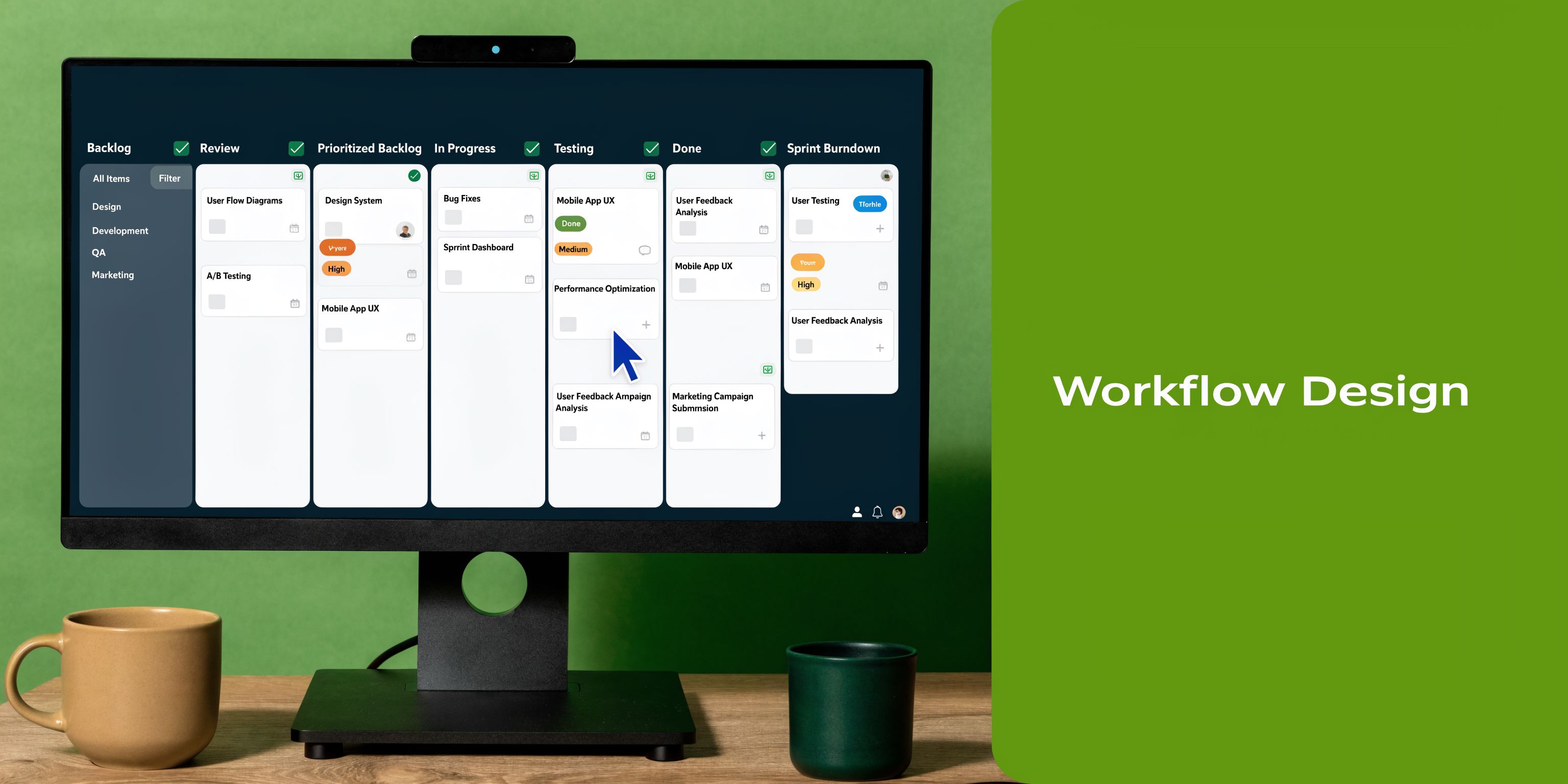
For most SaaS teams, a stronger starting flow looks like this:
- Backlog for captured work that is not ready yet
- Ready for Dev for refined issues with enough context to start
- In Progress for active implementation
- In Review for pull request and reviewer activity
- QA or Staging for validation before release
- Done for completed and verified work
That layout does two useful things.
First, it exposes where work is waiting. Second, it separates “someone started this” from “the business can rely on this.” Those are not the same status.
A support-heavy agency might swap in columns like “Client Approval” or “Needs Clarification.” A platform team might need “Blocked” as a filtered view rather than a main column. The principle stays the same. Columns should represent meaningful transitions in value delivery, not every tiny internal action.
Use fields to make the board operational
Columns show movement. Fields make the board usable.
The fields that usually matter most are:
Priority
Use a short scale such as P0, P1, P2. Keep it simple enough that people can apply it consistently.Effort
Story points, T-shirt size, or another lightweight estimate. This is less about precision and more about spotting oversized work.Work type
Bug, feature, enhancement, documentation, tech debt. This helps separate reactive work from planned delivery.Assignee
Useful for personal views, but not enough by itself to manage flow.Epic or initiative
Connects day-to-day issues to larger roadmap work.Customer impact or account
Especially useful for B2B teams handling enterprise requests or client-specific commitments.
GitHub’s broader kanban best practices emphasize consistent labeling, work-in-progress limits, and built-in analytics for productivity and workflow efficiency: https://github.com/kanboard/kanboard
That is why labels and custom fields should work together. Labels are flexible. Fields are structured. Use labels for categorization and fields for sorting, filtering, and reporting.
A field design that usually works
Here is a practical setup for fast-moving teams:
| Field | Recommended use | Why it matters |
|---|---|---|
| Status | Board columns | Drives visible flow |
| Priority | P0 to P2 | Forces trade-offs |
| Type | Bug, Feature, Docs, Debt | Helps capacity planning |
| Effort | Small, Medium, Large | Flags work that should be split |
| Initiative | Product area or epic | Preserves roadmap context |
If the team has to click into every card to understand urgency, ownership, and business relevance, the board is under-designed.
Map the process before you customize the board
The cleanest boards come from teams that map the workflow before they touch fields and statuses.
This process-mapping guide is a useful reference if your current delivery path exists mostly in people’s heads rather than in a documented operating flow: https://makeautomation.co/business-process-mapping-techniques/
One warning from practice. Teams often create too many fields because GitHub lets them. That leads to incomplete cards and weak reporting.
Keep only the fields that support one of these decisions:
- Should we start this now?
- Who owns this next?
- Why is this blocked?
- How does this relate to a bigger outcome?
If a field does not improve one of those decisions, remove it.
Putting Your Board on Autopilot with Automation
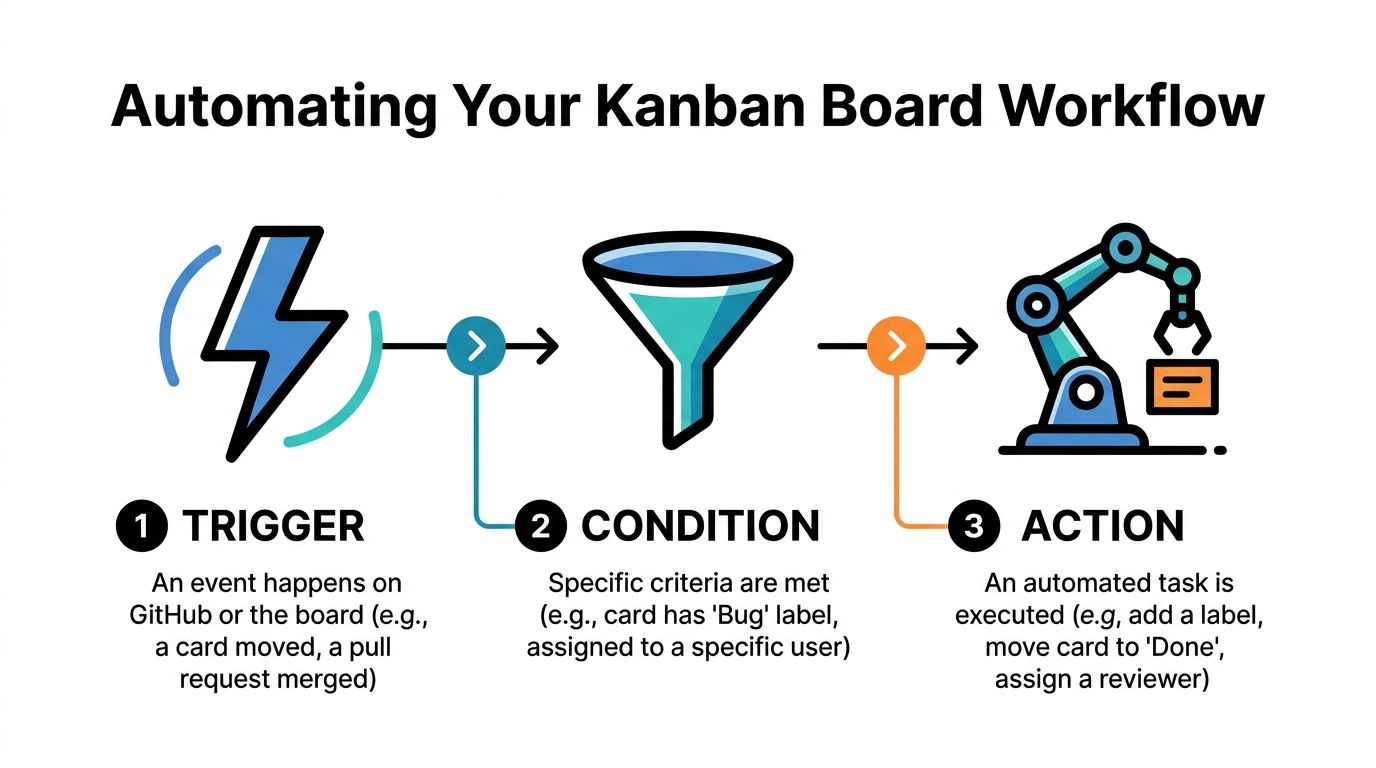
A GitHub board becomes valuable when it updates itself from the same events your developers already trigger.
Manual drag-and-drop has its place. It is useful for triage, planning, and exceptions. It should not be the primary engine of status movement. If it is, your board will drift behind reality.
Use native automation first
GitHub’s Automated Kanban with Review template uses native rules to move cards based on repository events, and teams using it with full pull-request integration typically reduce project status update time by 40-60% compared to manual board management: https://www.youtube.com/watch?v=rwwqEIVyEU4
That is the practical reason to begin with native automation. It removes a category of repetitive admin that nobody wants to own.
A simple set of rules usually gets you most of the value:
New issue added
Send it to Backlog or Ready for Dev.Branch or active development begins
Move the item into In Progress.Pull request opens
Move the item into In Review.Pull request merges
Move the item into Done, or into QA if your release path requires validation first.
These automations matter because they are tied to repository behavior. The board updates when the work changes state, not when someone remembers to clean up the board.
Where GitHub Actions helps
Native project workflows handle the obvious transitions. GitHub Actions helps when your process has extra rules.
Useful examples include:
Reviewer assignment by file path
Frontend changes route to the frontend reviewer set. Infrastructure changes route elsewhere.Label enforcement
Pull requests without a linked issue or a required label can be flagged for cleanup.Notifications
Post a Slack update when a high-priority issue enters review or when a release-critical fix lands in Done.Governance checks
Require the issue link, template completion, or specific approvals before status changes are considered complete.
Here, the board starts acting less like a project tracker and more like a workflow system.
For teams thinking beyond task movement and into broader workflow automation, the key mindset is the same. Let systems react to events so people can focus on exceptions and decisions.
A quick visual walkthrough can help your team understand how this looks in practice:
Native rules versus custom workflows
Not every team needs the same level of automation.
| Need | Best fit | Why |
|---|---|---|
| Basic issue movement | Native GitHub Project workflows | Fastest to configure |
| PR-driven status changes | Native automation | Closest to delivery events |
| Conditional reviewer or label logic | GitHub Actions | More control |
| Cross-tool syncing | Usually external automation or API work | GitHub guidance is limited here |
That last row matters. Native GitHub automation is strong inside GitHub. It is less clearly documented once you need to sync board activity with CRMs, client systems, or outbound operations platforms.
What works and what usually breaks
The strongest automation patterns share a few characteristics:
They are event-driven
A real action happened in the repo, so the board reflects it.They are easy to audit
Anyone can see why an item moved.They preserve human judgment
Automation handles status movement. People still decide priority, scope, and release timing.
The weak patterns usually look different:
- Statuses move because of arbitrary timers.
- Cards jump columns without a linked issue or pull request.
- Multiple automations overlap and create confusing board behavior.
- The board becomes so clever that nobody understands it.
Good automation removes manual updates. Bad automation hides the process.
The right goal is not to automate everything. It is to automate the transitions that are already deterministic.
Tracking Performance with WIP Limits and Metrics
Once the board reflects reality, it can start improving reality.
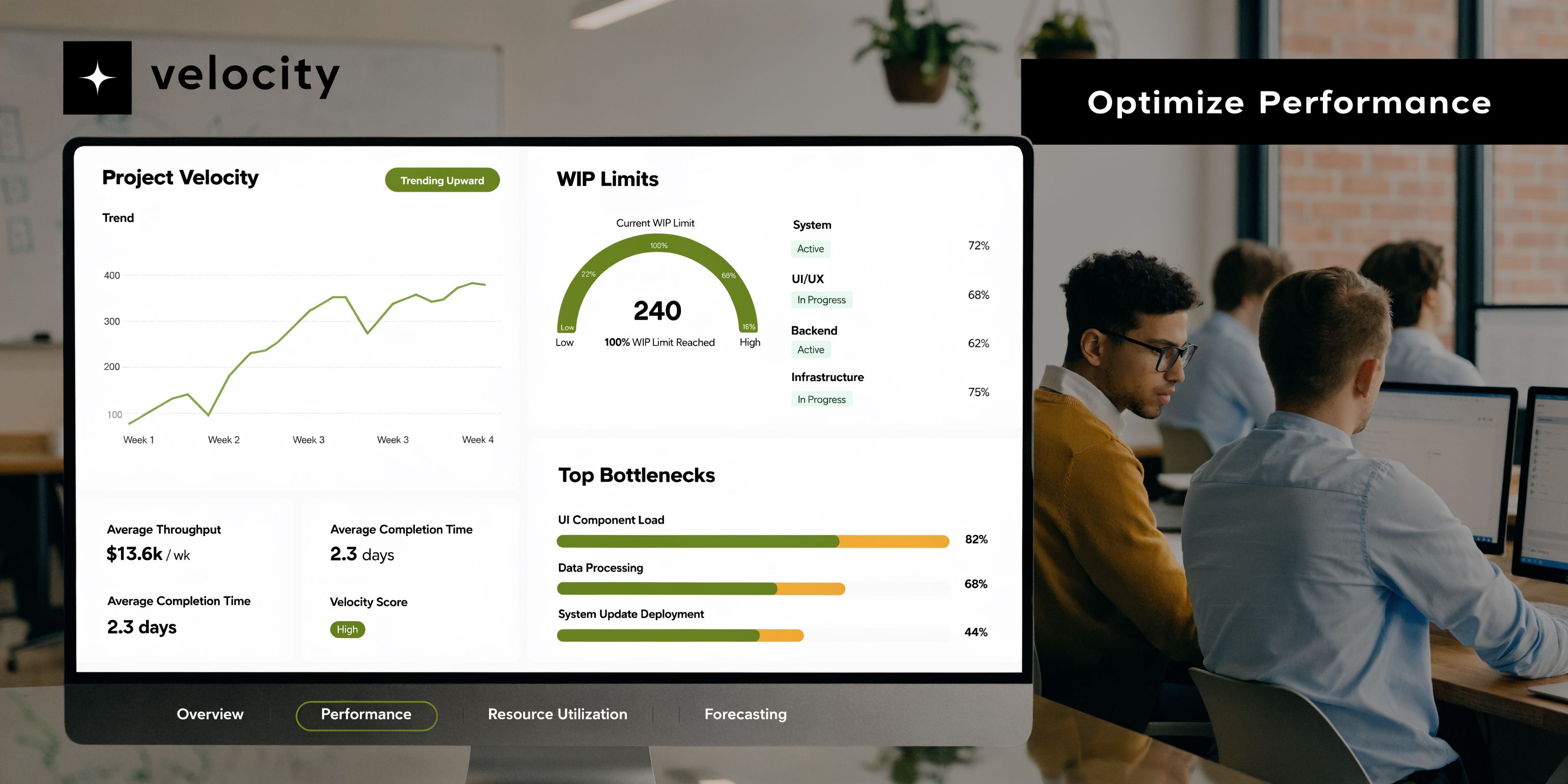
Many teams use kanban boards for visibility first. Mature teams use them to spot where work slows down, where review queues pile up, and where context switching is hurting throughput.
WIP limits are where discipline starts
Work in Progress limits force the team to finish before starting more.
That sounds restrictive until you see the alternative. Guidance on GitHub-based kanban practice notes that teams without WIP limits often experience “Kanban drift,” where boards accumulate 40-70% stale cards, while teams reaching 3-5 day average cycle times typically operate at a 70-80% card completion rate per sprint: https://cursa.app/en/page/project-management-with-kanban-on-github
Those numbers align with what ops leaders see in the field. Too much parallel work creates hidden queues, slower reviews, and half-finished tasks everywhere.
A practical approach is to apply WIP limits to the columns where delay hurts most:
In Progress
Prevents engineers from splitting attention across too many active tasks.In Review
Exposes review bottlenecks quickly.QA or Staging
Shows when validation is becoming the release constraint.
Read the board like a diagnostic tool
The board tells you more than whether work is moving.
Look for patterns such as:
| Signal | What it usually means |
|---|---|
| In Review keeps growing | Review capacity is too thin or PRs are too large |
| Ready for Dev stays empty | Planning and refinement are too weak |
| Too many aging items in progress | Work is oversized or priorities keep shifting |
| Done spikes at the end of a sprint | The team is batching completion instead of maintaining flow |
GitHub’s analytics and insights features can support this kind of reading when your fields and statuses are consistent. If the underlying data is messy, the charts will be messy too.
Metrics worth discussing with the team
You do not need a huge dashboard. You need a few measures people can act on.
Focus on:
Cycle time
How long work takes from start to finish.Throughput
How many items the team completes in a period.Blocked duration
How long issues sit without progress.Review queue health
Whether pull-request review is becoming the choke point.
If a metric cannot trigger a decision, it is probably vanity reporting.
The board should help the team ask better questions. Why is review backing up? Why are bugs skipping refinement? Why are high-priority tasks entering the system without enough detail?
Those questions improve delivery far more than adding another dashboard widget.
Integrating Kanban into Your Team Culture
A board does not fix behavior on its own. Teams do.
The shift that makes kanban for GitHub stick is cultural. The team has to treat the board as the shared operational view of work, not as a side artifact maintained for management. Once that happens, meetings get shorter and status conversations get sharper.
Run rituals from the board, not around it
Daily standups work better when the team reviews the board from right to left.
Start with Done or QA, then In Review, then In Progress. That keeps attention on finishing work and unblocking delivery instead of celebrating new starts. It also surfaces bottlenecks fast. If review is full, starting another task is usually the wrong answer.
Custom views also matter. Developers need a “My open work” view. PMs need a high-priority and blocked-items view. Support or client delivery leads may need a bugs-by-account or release-risk view. Same project, different slices.
Use retrospectives to improve flow, not just discuss feelings
The board should feed your retrospective with observable patterns.
Discuss questions like:
- Which column became the bottleneck most often?
- What kind of work bypassed normal flow?
- Which labels or fields were ignored?
- Where did handoffs create confusion?
Those conversations are better than generic retros because they are tied to visible system behavior.
The board should answer “what happened” so the meeting can focus on “what should change.”
Be realistic about external integrations
There is still a limitation for B2B operations teams. Guidance on connecting GitHub Kanban with third-party tools such as Zapier or Make is minimal, and that creates friction for teams that need project data to flow into CRMs or client management systems: https://edrawmind.wondershare.com/task-management/github-kanban.html
That gap matters if your delivery workflow intersects with sales, onboarding, account management, or support.
In practice, teams usually handle it one of three ways:
Keep GitHub as the engineering source of truth
Then sync only milestone updates outward.Use lightweight manual checkpoints
This works when client updates need review anyway.Build custom or semi-custom integrations
Useful when account-specific development work must trigger actions in external systems.
The mistake is trying to fully mirror every state change across every tool. That usually creates more noise than value. Sync the events that matter to another team. Leave engineering-native detail in GitHub.
Kanban works when it becomes part of how the team thinks about flow, ownership, and completion. Once that happens, the board is no longer just a board. It is the operating picture everyone uses to decide what happens next.
If your team wants to turn GitHub Projects into a real operating system instead of another half-maintained board, MakeAutomation can help design the workflow, document the rules, and connect the process to the rest of your B2B operations. That includes project management systems, CRM handoffs, AI-supported workflows, and custom automation that reduces manual work without adding more tool sprawl.