
SVG Code to Image: A Guide to Automated Conversion
If you're dealing with SVG code today, you're probably not trying to export one logo by hand. You're trying to generate images inside a product. A customer creates a dashboard and wants a PNG export. Your app needs social preview cards for every new knowledge-base page. A reporting workflow builds chart images for email attachments. The SVG already exists as code, but the business needs a dependable image output.
That sounds simple until volume shows up. A manual export step doesn't survive real SaaS usage. Teams need a repeatable path from structured data to image asset, and they need it to work without a designer opening Figma every time. That's where SVG becomes useful beyond design. Because it's code, it fits naturally into automation, templating, rendering pipelines, and governance controls.
Why Manual SVG Conversion Fails at Scale
A small team can get away with ad hoc exports for a while. Someone opens the SVG, tweaks a label, exports PNG, uploads it, then posts the result where it's needed. That workflow breaks as soon as image generation becomes tied to product events instead of human schedules.

A common example is personalized social cards. Marketing wants every article, webinar, and landing page to have a branded image. Product wants customer-specific snapshots. Sales wants proposal visuals generated from account data. Once that starts, the bottleneck isn't design quality. It's the fact that people are still acting as the renderer.
SVG works well for automation because it's text. SVG was standardized by the W3C in 1999, and because it's XML-based, it can be created and edited as text, scaled without loss of quality, and rendered by most browsers, as described in the SVG format overview. For engineering teams, that matters more than the file extension itself. It means you can treat image generation like any other templating problem.
Where manual workflows break
- Content velocity: A growing SaaS company publishes faster than a design queue can keep up.
- Per-user variation: Report charts, certificates, badges, and previews often depend on user data.
- Operational drift: Two people exporting the same SVG from different tools don't always get matching output.
- No audit trail: Manual exports make it hard to know which template version produced which image.
Practical rule: If an image is derived from application data, it should usually be generated by the application, not by a person.
Manual conversion also hides failure modes until they're expensive. A designer may fix clipping visually without addressing the root SVG issue. That patch doesn't help when the same template runs again with longer text, a different logo, or a new locale.
What changes in a SaaS context
In SaaS, "SVG code to image" isn't a creative task. It's an infrastructure concern. The question becomes:
- Where should rendering happen?
- How do you keep output consistent?
- How do you avoid leaking customer assets?
- How do you support retries, queues, and template versioning?
Once you frame it that way, the conversion step becomes one part of a larger image-generation system.
Client-Side Conversion with JavaScript and Canvas
For user-driven exports, client-side rendering is often the fastest path to value. If a user clicks "Download chart as PNG" inside your product, the browser can usually do the work without involving your backend.
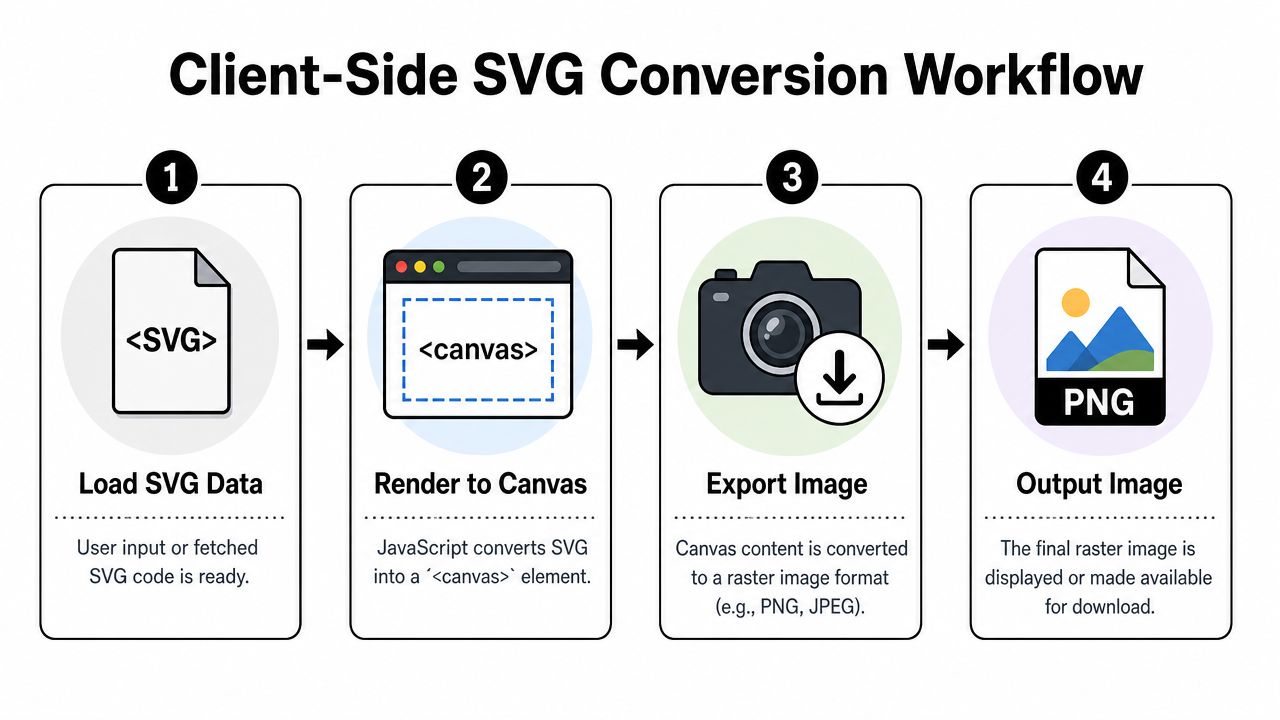
The browser pipeline is straightforward. Serialize the SVG, wrap it in a Blob URL, load it into an <img>, draw it onto a <canvas>, then export with canvas.toDataURL('image/png'). That exact sequence is shown in this browser conversion walkthrough.
A practical browser workflow
If your SVG already exists in the DOM, this pattern is reliable for modern browser-based apps:
async function svgElementToPngDataUrl(svgElement, outputWidth, outputHeight) {
  const serializer = new XMLSerializer();
  const svgString = serializer.serializeToString(svgElement);

  const blob = new Blob([svgString], { type: 'image/svg+xml;charset=utf-8' });
  const url = URL.createObjectURL(blob);

  try {
    const img = new Image();

    await new Promise((resolve, reject) => {
      img.onload = resolve;
      img.onerror = reject;
      img.src = url;
    });

    const canvas = document.createElement('canvas');
    canvas.width = outputWidth;
    canvas.height = outputHeight;

    const ctx = canvas.getContext('2d');
    ctx.clearRect(0, 0, outputWidth, outputHeight);
    ctx.drawImage(img, 0, 0, outputWidth, outputHeight);

    return canvas.toDataURL('image/png');
  } finally {
    URL.revokeObjectURL(url);
  }
}
That gives you a PNG data URL you can preview, upload, or download.
Triggering a download
For export features, wrap the result in a small helper:
function downloadDataUrl(filename, dataUrl) {
  const a = document.createElement('a');
  a.href = dataUrl;
  a.download = filename;
  document.body.appendChild(a);
  a.click();
  a.remove();
}
Then call both functions together:
const svg = document.querySelector('svg');
const pngUrl = await svgElementToPngDataUrl(svg, 1200, 630);
downloadDataUrl('social-card.png', pngUrl);
The sharpness of the exported PNG depends on the canvas size you choose, not just the quality of the original SVG.
What works well
Client-side conversion is a good fit when:
- The user initiates the export: dashboards, reports, posters, certificates.
- You want low backend complexity: no render queue, no image worker, no storage step required.
- The SVG is already rendered in the UI: the browser has the exact state the user sees.
It also reduces server load because the app doesn't need to render every export centrally.
Where it falls short
This method gets weaker when you need predictable automation. A browser tab isn't a batch-processing environment. User devices vary. Fonts may differ. Memory pressure is outside your control. If the export is tied to an email campaign, webhook, or scheduled job, client-side logic becomes the wrong layer.
Another practical limit is governance. If the SVG contains customer branding or sensitive report data, relying on whatever browser environment is available may not satisfy internal security expectations. For one-off exports, that's acceptable. For production pipelines, it's often not.
Server-Side Rendering for High-Volume Automation
Once image generation moves into background jobs, server-side rendering becomes the safer default. It gives you one controlled runtime, one rendering stack, and one place to observe failures.

That matters when your app is generating personalized social cards, email images, chart snapshots, or downloadable reports in the background. The trade-off is operational overhead. You now own the rendering environment.
Three practical approaches
CLI renderers such as ImageMagick and rsvg-convert are useful when your SVG is structurally simple and your throughput matters more than browser-perfect fidelity. They're scriptable, easy to call from workers, and usually easier to scale horizontally than a full browser runtime.
Headless browsers such as Puppeteer and Playwright make more sense when the SVG depends on browser behavior. If your design uses embedded CSS, web fonts, layout assumptions, or dynamic DOM composition, Chromium-based rendering tends to be more faithful than lower-level converters.
Application-native wrappers sit on top of those tools. Teams often build a render service that accepts structured payloads, injects values into an SVG template, renders the output, stores the result, and returns a signed URL or internal asset reference.
When each option is the right one
| Tooling path | Strength | Weak spot | Best use case |
|---|---|---|---|
| CLI renderer | Fast, simple automation | Can differ from browser rendering | Static templates, badges, chart exports |
| Headless browser | High rendering fidelity | Heavier runtime, slower startup | Complex branded cards, CSS-heavy visuals |
| Render microservice | Good governance and reuse | Requires platform work | Multi-team SaaS image generation |
A lot of teams start with a CLI and later move selective workloads to headless Chromium. That's usually the right progression. Don't pay browser-runtime costs for every image if a simpler renderer already matches your templates.
A useful reference point for image rendering trade-offs is this discussion of rendering stack choices. The same logic applies here. Choose the minimum rendering engine that reliably matches your output requirements.
Reliability matters more than elegance
What breaks server-side systems isn't usually the happy path. It's retries, bad templates, malformed SVG, missing fonts, and odd payloads from real customer data.
Consider adding these checks before rendering:
- Template validation: reject SVG that lacks expected dimensions or key placeholders.
- Font policy: bundle known fonts or convert text to paths when exact visual fidelity matters.
- Timeout control: treat rendering as untrusted work, especially if user-supplied SVG is allowed.
- Artifact logging: keep the input SVG for failed jobs so engineers can reproduce the issue.
Later in the stack, this video gives a useful visual overview of SVG handling considerations in production workflows:
Choosing Your Conversion Strategy
The wrong question is "Which SVG tool is best?" The right question is "Where should rendering live for this workflow?"
If users export images occasionally from a page they're already viewing, client-side conversion is often enough. If your product generates images after a trigger, on a schedule, or inside backend processing, server-side rendering usually wins because it's consistent and observable.
Decision table
| Factor | Client-Side (JavaScript/Canvas) | Server-Side (ImageMagick/Headless Browser) |
|---|---|---|
| Scalability | Scales with user devices, not with your backend | Scales with your worker and infrastructure design |
| Rendering consistency | Depends on browser, fonts, and device conditions | More consistent because runtime is controlled |
| Setup complexity | Low | Medium to high |
| Infrastructure cost | Lower on the server side | Higher because you run rendering jobs |
| User experience | Immediate for interactive exports | Better for background jobs and asynchronous delivery |
| Security posture | Useful when assets can stay local in browser | Better when you need centralized controls and auditability |
| Batch automation | Weak fit | Strong fit |
| Operational maintenance | Less backend maintenance | More responsibility for queues, retries, and monitoring |
A simple decision path
Ask these questions in order:
Does the user need the file instantly in the browser?
If yes, start with client-side export.Does the image need to be generated without a user present?
If yes, move to server-side rendering.Do you need exact, repeatable output across all customers?
If yes, server-side rendering is usually safer.Are the SVG inputs sensitive?
If yes, choose the path that gives you stronger governance over where assets are processed and stored.
Browser-based conversion is a product feature. Server-side conversion is an operational system.
The security question changes the answer
Feature comparisons often focus on convenience, but security can outweigh convenience fast. For enterprise workflows, a local or browser-only converter can be preferable when it reduces exposure of sensitive design assets, especially for teams handling client, brand, or product artwork at scale. That concern is highlighted in this discussion of local and browser-only conversion.
That doesn't mean client-side is always more secure. It means data flow matters. If your backend would otherwise transmit proprietary brand assets through third-party infrastructure, local processing may be the safer path. If you need audit logs, permissioning, and centralized controls, server-side may be safer instead.
Automating Image Generation in SaaS Workflows
A SaaS team usually feels the pain around image generation at the same point. Marketing wants personalized social cards for every campaign. Customer success wants branded report exports. Product wants user-generated visuals to appear inside emails, dashboards, and public pages. Once those requests depend on manual exports, turnaround slows down, output becomes inconsistent, and nobody can explain which asset was generated from which input.
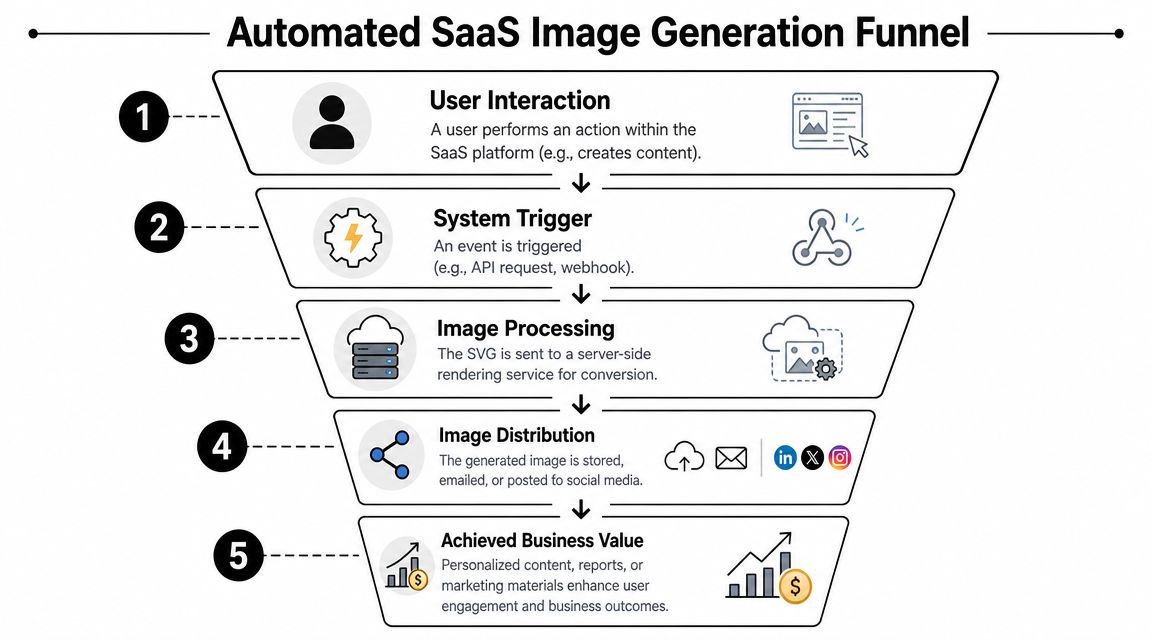
The useful unit of work is a render job, not a one-off file conversion. In practice, that means a product event creates a job, the job selects an approved SVG template, customer data fills the variable fields, a worker renders the image, and the result is stored for delivery through email, reports, landing pages, or an API.
A production pipeline usually includes these stages:
- Event intake: signup, report completion, content publication, scheduled batch run, or webhook trigger.
- Job payload: template ID, tenant context, input data, requested dimensions, output format, and trace metadata.
- Template assembly: merge layout, brand colors, text, charts, and optional logos.
- Rendering worker: run the conversion in an isolated process with fixed fonts, dependencies, and time limits.
- Storage and delivery: save the output, attach metadata, and publish a URL or hand the file to the next system.
That structure matters because rendering is rarely the slowest part only once. At scale, queues, retries, idempotency, and audit trails matter more than the conversion call itself.
Governance belongs in the design from the start. SVG is markup with rendering behavior, external references, styling rules, and user-controlled inputs. In a multi-tenant SaaS product, that makes image generation part of your application surface area, not a harmless utility.
Use controls that reduce ambiguity:
- Template allowlists: only approved templates can run in production.
- Input validation: reject unsupported tags, remote assets, and malformed payloads before the worker starts.
- Execution isolation: run render jobs in containers or sandboxed workers with strict memory and time limits.
- Asset lifecycle rules: define retention for source SVG, output images, logs, and failed renders.
- Tenant scoping: keep templates, fonts, and stored assets separated by account where contracts require it.
If your render service runs in Node, a guide on Dockerizing Node.js for consistent worker deployments is a practical starting point for packaging the runtime the same way in development, staging, and production.
Brand assets are another operational detail that gets messy fast. Customer logos arrive in different formats, with odd padding, missing transparency, or outdated files. A service like #1 logo api can simplify logo retrieval when generated cards, summaries, or partner-facing reports need company branding inserted reliably.
Reporting products run into a related pattern with chart exports and scorecards. Teams often generate SVG as an intermediate format because it is easy to templatize, diff, and version. Then they rasterize only at the edge where PNG or JPG is required. That approach keeps the template layer maintainable and makes it easier to test changes before they affect customer-facing assets.
Treat the render service like document infrastructure with SLAs, logging, and policy controls.
Some teams also use MakeAutomation as a practical SVG editor for pasted SVG code and image downloads such as PNG or JPG. That can help operations, marketing, or support teams prepare and review templates before those templates are promoted into the automated workflow.
Common Pitfalls and Performance Tuning
The primary issue isn't an inability to convert SVG into PNG; instead, problems arise because the output isn't deterministic.
An SVG may look correct in a browser tab and still rasterize poorly in an automated job. The hard part is preparing the SVG so it renders the same way every time, under different payloads, fonts, and output sizes.
The biggest rendering traps
The most common source of trouble is geometry. The key challenge is often not conversion itself but preparing the SVG for deterministic rendering. Attributes like viewBox, points, and path geometry can create visual glitches if they're handled poorly, as explained in this SVG rendering guide.
Typical failures include:
- Clipping: the visible artwork extends beyond the
viewBox, so exports cut off shadows, strokes, or labels. - Unexpected spacing: centered strokes or path edges change the perceived size of shapes.
- Text drift: fonts render differently between environments, shifting labels enough to break layouts.
- Blurry output: the raster target is smaller than the final display context.
What to check before you blame the renderer
Run a preflight checklist on the SVG itself:
- Confirm dimensions: define width, height, and
viewBoxintentionally. - Audit overflow: test long names, large numbers, and multi-line labels.
- Stabilize fonts: bundle known fonts or avoid font-dependent designs in generated assets.
- Flatten complexity where needed: convert fragile effects into simpler shapes when exact output matters more than editability.
If you have a Node-based rendering service, performance work often shifts from SVG optimization to workload orchestration. Parallel job execution can help, but only if the renderer and host machine can handle it without thrashing. This Node.js multithreading article is a useful reference when you're deciding whether to parallelize rendering or keep strict worker isolation.
Performance tuning that actually matters
Not every optimization is worth doing. Focus on the changes that reduce operational pain:
- Render once, reuse often: cache outputs when the same input payload appears repeatedly.
- Separate template compilation from rendering: avoid rebuilding SVG structures for every job when only text changes.
- Limit output variants: every extra format and resolution multiplies work.
- Store debug artifacts selectively: keep failed inputs and representative successes, not every intermediate file forever.
A production-ready SVG pipeline is mostly about eliminating ambiguity before rendering starts.
Frequently Asked Questions About SVG Conversion
How do I turn raw SVG code into an image without hosting a file?
Use a Data URI, a canvas render step, or a server-side renderer that accepts SVG markup as input. For lightweight browser use, teams often prefix the markup with data:image/svg+xml;utf8, and render it inline. That works well for previews, embedded dashboard elements, and simple generated visuals where you want to avoid storing a separate asset.
For production SaaS workflows, inline rendering is only one option. Once images need to be reused across email, exports, social cards, or customer-facing reports, a generated PNG or WebP stored in object storage is usually easier to cache, audit, and serve consistently.
Why does my exported PNG look blurry when the SVG is vector?
The blur comes from the rasterization step, not the SVG itself.
SVG stays sharp until you convert it into pixels. If the renderer outputs a small bitmap and the app displays it larger, the image softens immediately. This shows up often in Open Graph cards, PDF exports, and user-generated assets where one template gets reused across several target sizes.
Set export dimensions based on the final display size. If the same asset may appear on high-density screens, render at a higher pixel size and downscale in delivery instead of scaling up a small PNG after export.
Should I choose client-side or server-side conversion?
Choose based on who triggers the render, how often it runs, and how much control the business needs over the output.
Client-side conversion fits user-initiated actions such as "download chart" or "save badge as PNG." It reduces server load and can feel faster because the image is generated in the browser. The trade-off is inconsistency across browsers, limited control over fonts, and a weaker audit trail.
Server-side conversion fits scheduled reports, API-driven asset generation, and branded outputs that need repeatable results. It gives the team tighter control over fonts, rendering libraries, rate limits, storage, and security review. It also makes governance easier when user-submitted SVG or template data could introduce rendering or sanitization risks.
A practical rule:
- User clicks export once: client-side is usually fine.
- The system generates images in the background: server-side is the safer default.
- Brand, compliance, or customer-visible consistency matters: keep rendering under controlled infrastructure.
If your team is trying to turn SVG templates into reliable, automated image outputs inside a SaaS workflow, MakeAutomation can help design and implement the pipeline around it, including rendering flow, process automation, and the operational pieces that keep it stable.